Getting Started - RankWit AI Onboarding Guide
RankWit AI empowers brands to monitor and improve their visibility across the new frontier of AI Search, including AI Search Engines like ChatGPT, Perplexity, and Google AI Overviews.
Step-by-Step Onboarding Process
Set up your brand monitoring in just 6 easy steps with our guided onboarding.
Step 1 - Sign in with magic link
Insert your work email address and check your inbox for the verification link.
Step 2 - Create Your First Workspace
Enter your brand name and website URL, then select your target location. For international businesses, choosing “Global” ensures your AI research and visibility insights are correctly geolocalized.
Step 3 - Select a plan
Try for free or choose the plan that fits your goals.
Step 4 - Generation of the prompts
Once the website crawling is complete, head over to the ‘Pages’ section, select the relevant pages, and click to ‘Generate Prompt’.
After selecting your pages, you can customize the output by choosing the number of prompts to be generated for each one. Simply select the quantity to ensure each page receives the right amount of prompts. In the first analysis you can use the suggested 5 prompt for each page.
Step 5 - Check and review the prompts
Now, navigate to the ‘Prompts’ section. This is your personal library where you can view all generated prompts; from here, you have the flexibility to edit, delete, archive, or even add new ones manually. If you wish to create new additional prompts from different pages, you can simply repeat the previous process. Once you are satisfied with your selection, proceed to the next step.
Step 6 - The first AI Runs
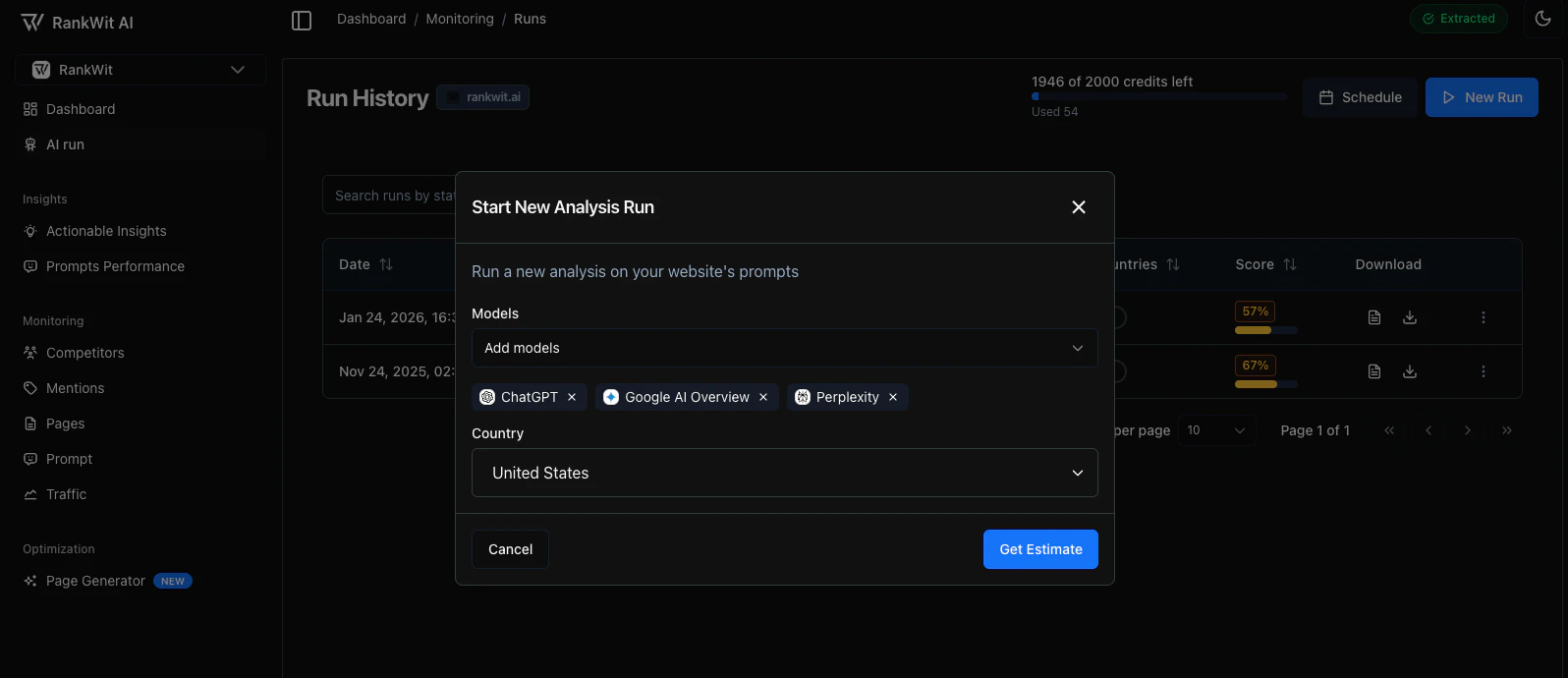
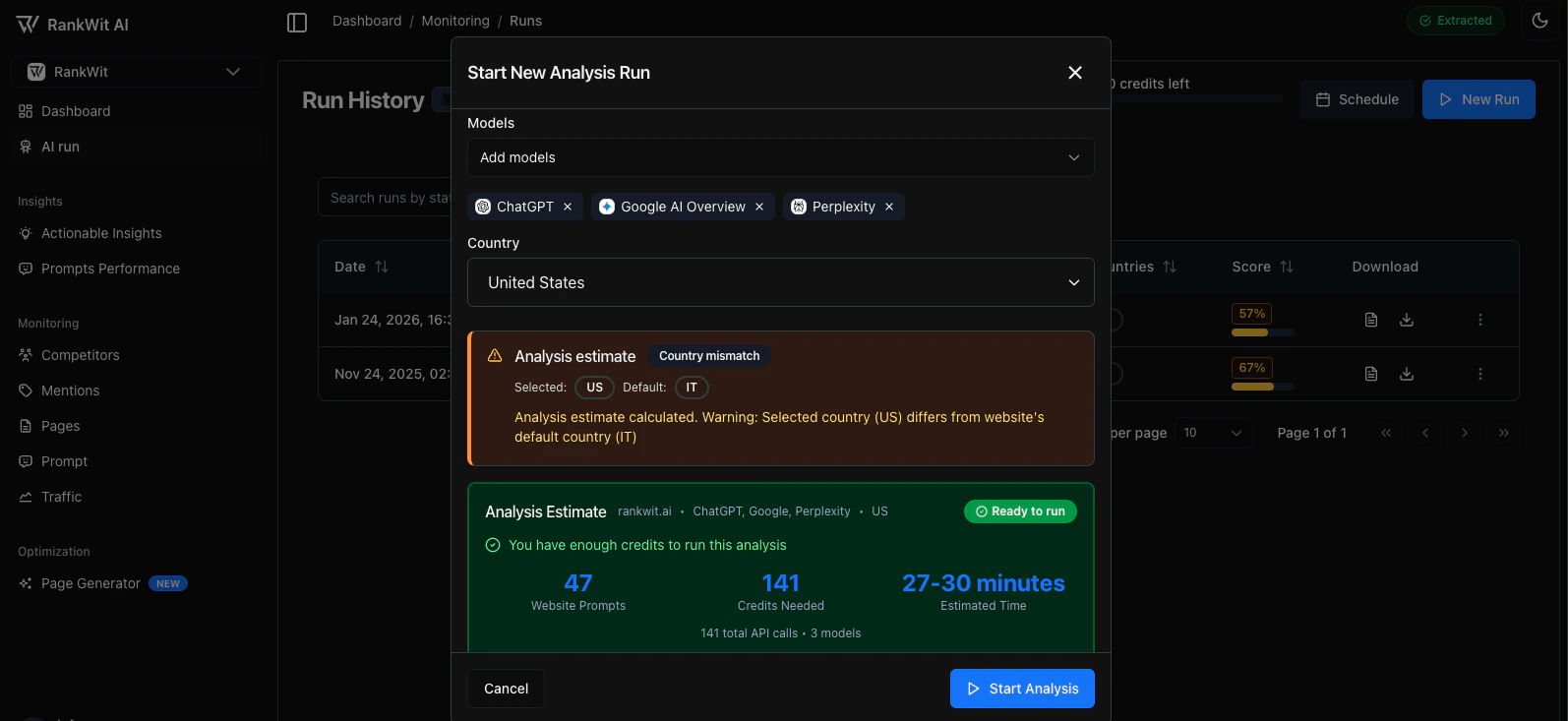
Go to the AI Runs section (under Monitoring) to begin your initial analysis of how your prompts perform on generative engines like ChatGPT, Perplexity, and Google AI Overviews. Once you click ‘New Run’, a side panel will appear, allowing you to customize your workflow by selecting the AI models and the geographic location (Country) for the search.
Click ‘Estimate’ to view a calculation of the processing time and the credits required for your run. This step allows you to manage your resources before committing to the task. When you are satisfied with the estimate, click ‘Start Analysis’ to initiate the workflow.
All it’s done. What you can do now
- Dashboard — View your overall visibility score and key performance metrics.
- AI Runs — Launch new runs, schedule analyses, and manage your report and history.
- Monitoring — Track competitors, mentions, pages, prompts, and traffic in one place.
- Insights — Get actionable insights and prompts performance to know where to focus.
- Optimization — Use the page generator to create and improve content with AI.
- Workspace — Manage account settings, billing, and integrations for your project.
Language
The app is available in English and Italian. You can switch language from the interface or from Workspace → Settings.
If you’re new, complete the onboarding when prompted and add at least one website to see data in Monitoring and Insights.