
What you see
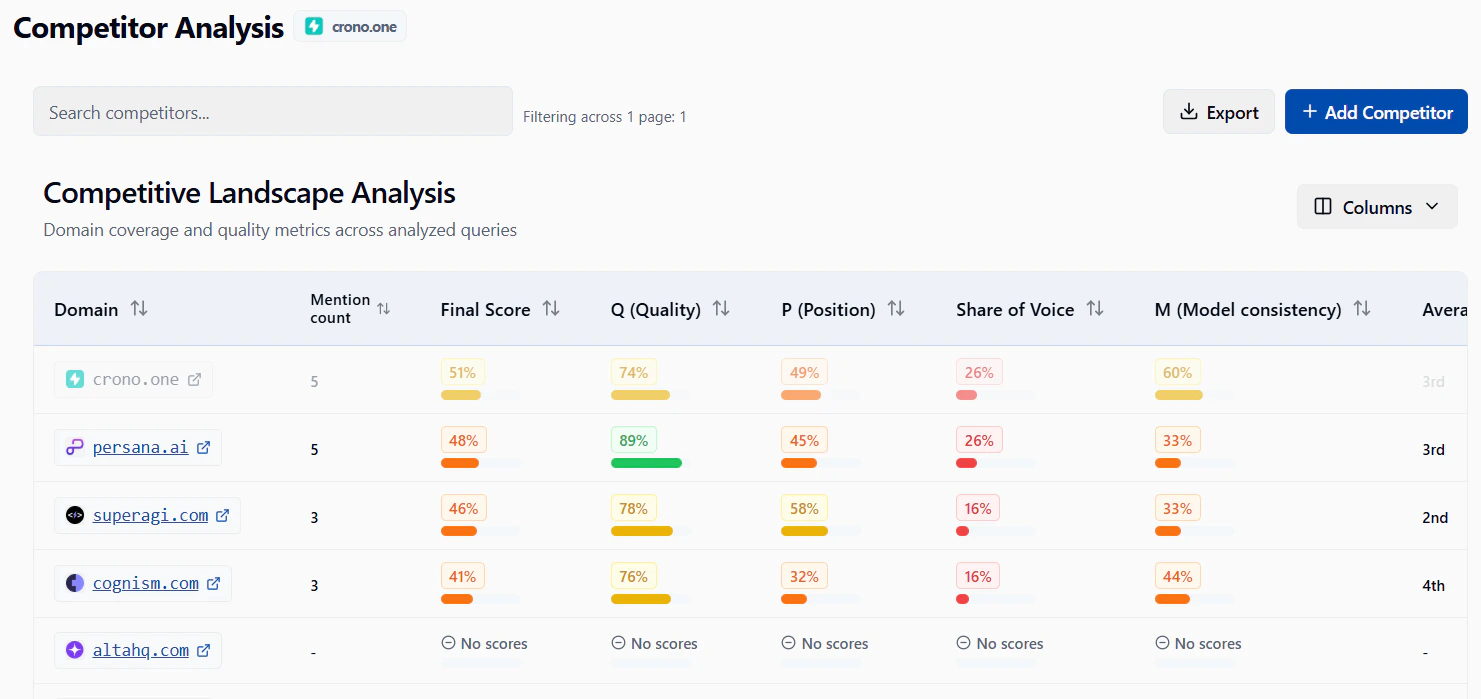
- A list of competitors you’ve added (site or URL and related metrics).
- Comparison data so you can see how you rank or perform next to them.
- Options to add, edit, or remove competitors.
Adding a competitor
- Open Monitoring → Competitors from the sidebar.
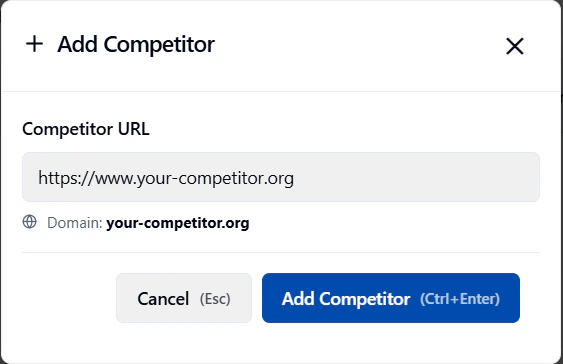
- Click Add competitor (or the equivalent button).
- Enter the competitor’s website or URL as requested.
-
Save. The competitor appears in the list and data will be collected according to your plan.
After adding a competitor, comparison data may take a short time to appear. Refresh or check back later if the list is still empty.
Using the table
You can usually:- Sort by column (click the column header).
- Filter or search when the app offers these options.
- Change page size and use pagination at the bottom.
Removing or editing a competitor
Use the row actions next to a competitor to edit (e.g. change URL) or remove it. Removing a competitor stops new comparison data for that entry.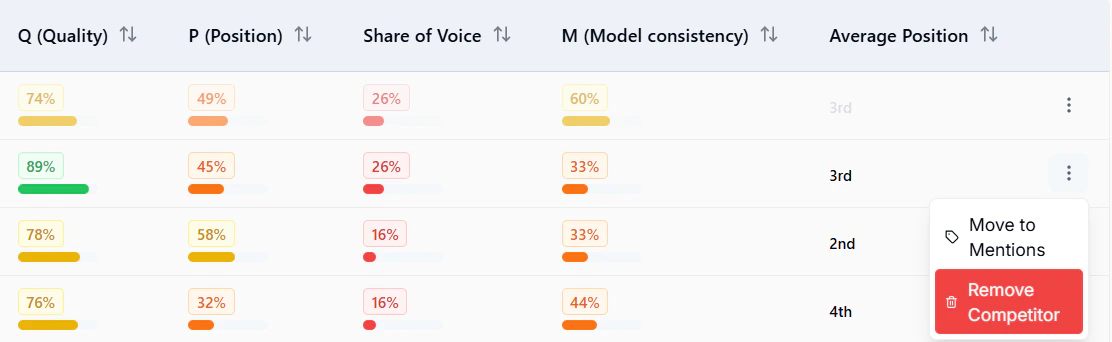
Make sure the correct website is selected (website selector) so you’re comparing against the right project.