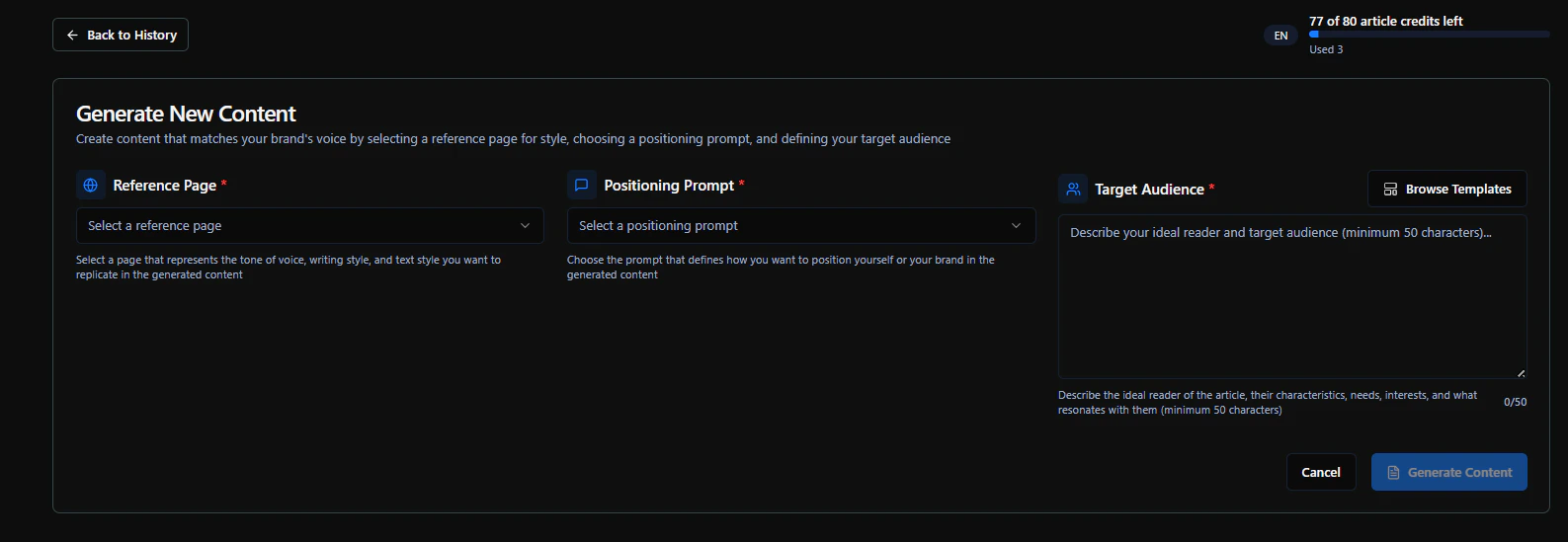
The Page generator in Optimization helps you create or improve content with AI. You provide a topic (and optional settings), and the tool suggests or generates content you can use or refine.
What you can do
- Generate new content — Enter a topic or brief; the generator produces a draft (e.g. outline, sections, or full text) you can edit and publish.
- Optimize existing content — Paste or link a page and get suggestions to better match a prompt or intent from your Monitoring setup.
- Plan content — Use the generator to explore angles or headlines before writing.
How to use it
-
Open Optimization → Page generator from the sidebar.
-
Choose New content (or “Generate”) or Optimize (if you’re improving an existing page).
-
Enter the topic (and any options the app offers: tone, length, audience, or target prompt).
-
Start the generation. When it’s ready, review the result, edit it in the app or in your CMS, and save or publish.
Use clear, specific topics and align with the prompts you track in Monitoring so the content supports your SEO goals. Check Actionable insight and Prompts performance to decide what to generate next.
After generation
- Edit the output in the app if an editor is available.
- Copy or export to use in your site or CMS.
- Schedule or save to your content calendar if the app supports it. You can track performance later in Monitoring and Insights once the page is live.
Next: Settings or Actionable insight.