> ## Documentation Index
> Fetch the complete documentation index at: https://docs.rankwit.ai/llms.txt
> Use this file to discover all available pages before exploring further.
# Page generator
> How to create and optimize content with the AI page generator.
The **Page generator** in Optimization helps you create or improve content with AI. You provide a topic (and optional settings), and the tool suggests or generates content you can use or refine.
## What you can do
* **Generate new content** — Enter a topic or brief; the generator produces a draft (e.g. outline, sections, or full text) you can edit and publish.
* **Optimize existing content** — Paste or link a page and get suggestions to better match a **prompt** or intent from your Monitoring setup.
* **Plan content** — Use the generator to explore angles or headlines before writing.
## How to use it
1. Open **Optimization → Page generator** from the sidebar.
2. Choose **New content** (or “Generate”) or **Optimize** (if you’re improving an existing page).
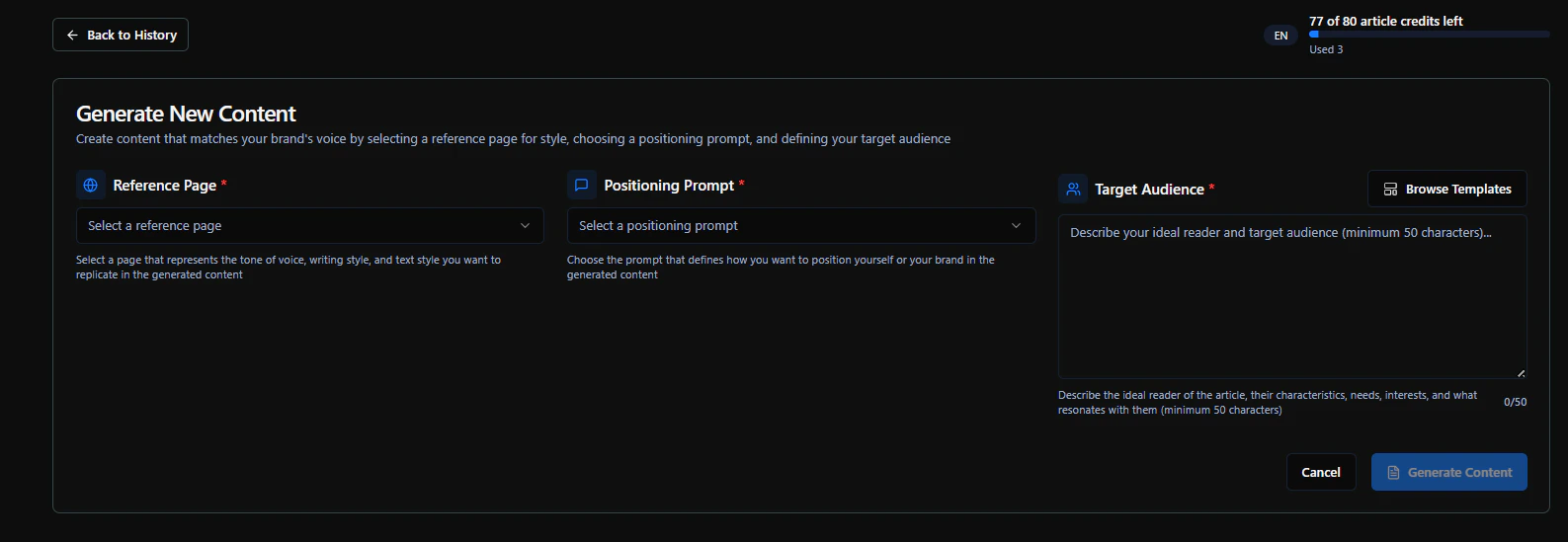 3. **Enter the topic** (and any options the app offers: tone, length, audience, or target prompt).
4. Start the generation. When it’s ready, review the result, edit it in the app or in your CMS, and save or publish.
Use clear, specific topics and align with the **prompts** you track in Monitoring so the content supports your SEO goals. Check **Actionable insight** and **Prompts performance** to decide what to generate next.
## After generation
* **Edit** the output in the app if an editor is available.
* **Copy or export** to use in your site or CMS.
* **Schedule or save** to your content calendar if the app supports it. You can track performance later in **Monitoring** and **Insights** once the page is live.
Next: [Settings](/workspace/settings) or [Actionable insight](/insight/actionable-insight).
3. **Enter the topic** (and any options the app offers: tone, length, audience, or target prompt).
4. Start the generation. When it’s ready, review the result, edit it in the app or in your CMS, and save or publish.
Use clear, specific topics and align with the **prompts** you track in Monitoring so the content supports your SEO goals. Check **Actionable insight** and **Prompts performance** to decide what to generate next.
## After generation
* **Edit** the output in the app if an editor is available.
* **Copy or export** to use in your site or CMS.
* **Schedule or save** to your content calendar if the app supports it. You can track performance later in **Monitoring** and **Insights** once the page is live.
Next: [Settings](/workspace/settings) or [Actionable insight](/insight/actionable-insight).