> ## Documentation Index
> Fetch the complete documentation index at: https://docs.rankwit.ai/llms.txt
> Use this file to discover all available pages before exploring further.
# Prompt
> How to use prompts and runs for SEO monitoring in RankWit.
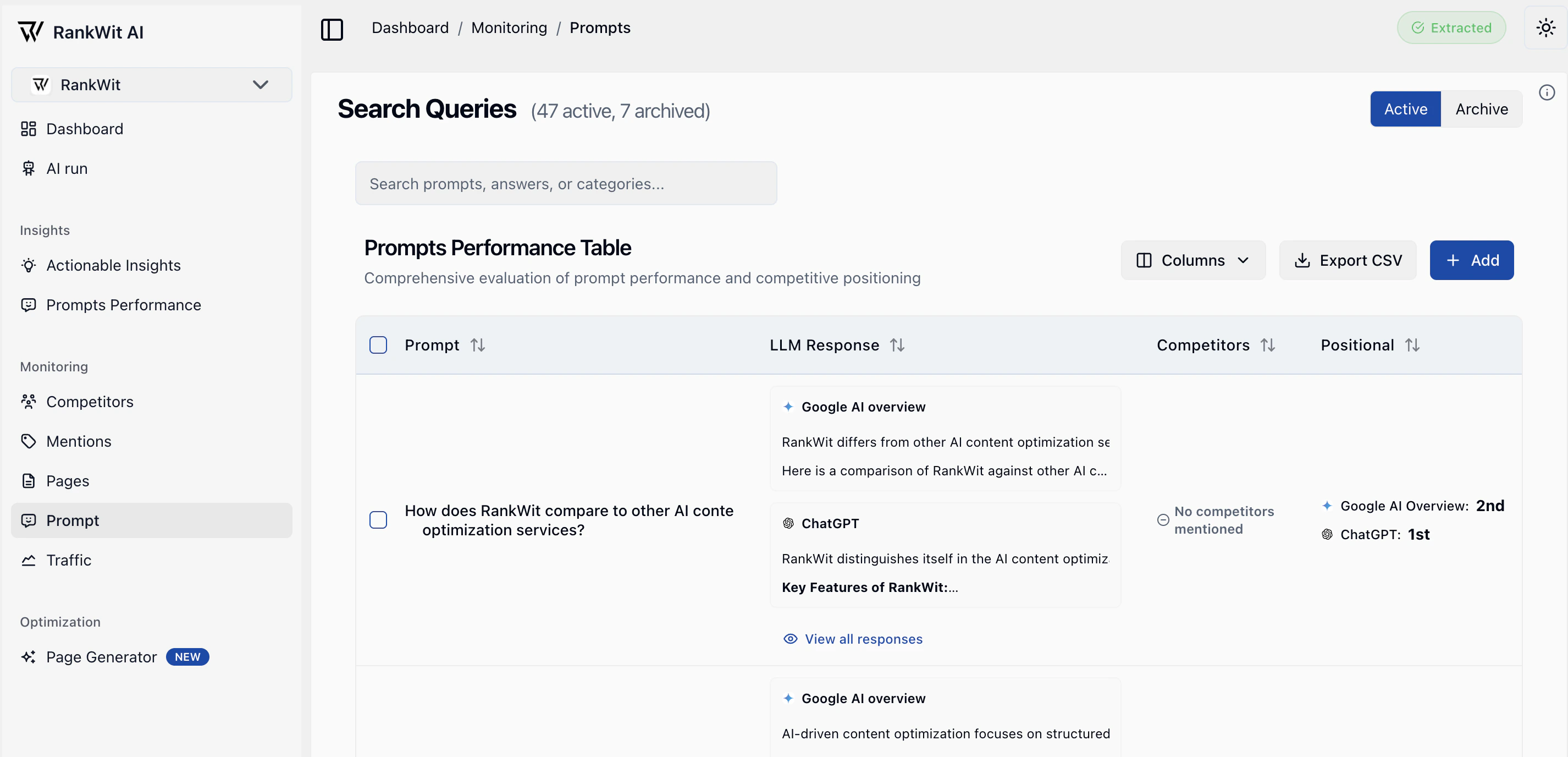
The **Prompt** section in Monitoring is where you manage the **prompts** (questions or themes) you track for SEO, and see how they perform in **runs**.
 ## What are prompts?
**Prompts** are the search intents or topics you care about (e.g. “best running shoes”, “how to train for a marathon”). RankWit uses them to:
* Evaluate how well your **pages** answer those intents.
* Run SEO checks (**runs**) that score or compare your content.
* Feed data into **Insights → Prompts performance**.
## What you see
* A list of your **prompts** (text, AI Answer, and related metrics).
* Options to **add** or **edit** prompts and **start a new run**.
* Export all of your prompts in a CSV file.
## Adding or editing prompts
1. Open **Monitoring → Prompt**.
2. Click **Add prompt** (or edit an existing one).
3. Enter the **prompt text** (the question or theme you want to track).
4. (Optional) Set **intent**, **length** (short‑tail, mid‑tail, long‑tail) and **branded / non‑branded** so analysis and filters are more accurate.
5. Save. The prompt is included in the next run and in Prompts performance.
You can also [import multiple prompts from a CSV file](#import-prompts-from-csv) if you already manage your queries in a spreadsheet.
## Import prompts from CSV
If you already have your search queries in a spreadsheet, you can upload them in bulk using the **Import CSV** feature in **Monitoring → Prompt**.
* **Download the CSV template**:\
Use this Google Sheet as a reference and export it as CSV before uploading:\
[`CSV template (Google Sheets)`](https://docs.google.com/spreadsheets/d/1OmDJs08mOGkOWf4QC_eE-t5L_T7ElAVW70GxzUih0UQ/edit?gid=0#gid=0)
## What are prompts?
**Prompts** are the search intents or topics you care about (e.g. “best running shoes”, “how to train for a marathon”). RankWit uses them to:
* Evaluate how well your **pages** answer those intents.
* Run SEO checks (**runs**) that score or compare your content.
* Feed data into **Insights → Prompts performance**.
## What you see
* A list of your **prompts** (text, AI Answer, and related metrics).
* Options to **add** or **edit** prompts and **start a new run**.
* Export all of your prompts in a CSV file.
## Adding or editing prompts
1. Open **Monitoring → Prompt**.
2. Click **Add prompt** (or edit an existing one).
3. Enter the **prompt text** (the question or theme you want to track).
4. (Optional) Set **intent**, **length** (short‑tail, mid‑tail, long‑tail) and **branded / non‑branded** so analysis and filters are more accurate.
5. Save. The prompt is included in the next run and in Prompts performance.
You can also [import multiple prompts from a CSV file](#import-prompts-from-csv) if you already manage your queries in a spreadsheet.
## Import prompts from CSV
If you already have your search queries in a spreadsheet, you can upload them in bulk using the **Import CSV** feature in **Monitoring → Prompt**.
* **Download the CSV template**:\
Use this Google Sheet as a reference and export it as CSV before uploading:\
[`CSV template (Google Sheets)`](https://docs.google.com/spreadsheets/d/1OmDJs08mOGkOWf4QC_eE-t5L_T7ElAVW70GxzUih0UQ/edit?gid=0#gid=0)
 * **How to import**:
1. Open **Monitoring → Prompt**.
2. Click **Import CSV**.
3. Select your CSV file (exported from the template).
4. Confirm the upload. New prompts will appear in the table and will be included in the next run.
* **Supported columns and values** (column names are case‑insensitive):
* **text** (required):\
The prompt text / search query, e.g. `best running shoes`.
* **intent** (optional):\
One of:
* `informational`
* `navigational`
* `transactional`
* `commercial`
* **length** (optional):\
One of:
* `short-tail`
* `mid-tail`
* `long-tail`
* **role** (optional):\
One of:
* `branded`
* `non-branded`
* **tags** (optional):\
Comma‑separated list of tags, e.g. `top-of-funnel, us, b2c`.\
Tags are stored lowercased and trimmed; if a tag already exists for the website it will be reused.
If a row has invalid values (for example, an unknown `intent` or `role`), the system ignores the entire row.
## Tags for prompts
**Tags** let you group prompts by themes such as **product line**, **funnel stage**, **country**, or **campaign**.
* **Where to find them**: in **Monitoring → Prompt**, use the **Tags** column for each row.
* **Add a tag**: click into the Tags area, start typing, and press **Enter** (or choose from the suggestions) to attach a tag to that prompt.
* **How to import**:
1. Open **Monitoring → Prompt**.
2. Click **Import CSV**.
3. Select your CSV file (exported from the template).
4. Confirm the upload. New prompts will appear in the table and will be included in the next run.
* **Supported columns and values** (column names are case‑insensitive):
* **text** (required):\
The prompt text / search query, e.g. `best running shoes`.
* **intent** (optional):\
One of:
* `informational`
* `navigational`
* `transactional`
* `commercial`
* **length** (optional):\
One of:
* `short-tail`
* `mid-tail`
* `long-tail`
* **role** (optional):\
One of:
* `branded`
* `non-branded`
* **tags** (optional):\
Comma‑separated list of tags, e.g. `top-of-funnel, us, b2c`.\
Tags are stored lowercased and trimmed; if a tag already exists for the website it will be reused.
If a row has invalid values (for example, an unknown `intent` or `role`), the system ignores the entire row.
## Tags for prompts
**Tags** let you group prompts by themes such as **product line**, **funnel stage**, **country**, or **campaign**.
* **Where to find them**: in **Monitoring → Prompt**, use the **Tags** column for each row.
* **Add a tag**: click into the Tags area, start typing, and press **Enter** (or choose from the suggestions) to attach a tag to that prompt.
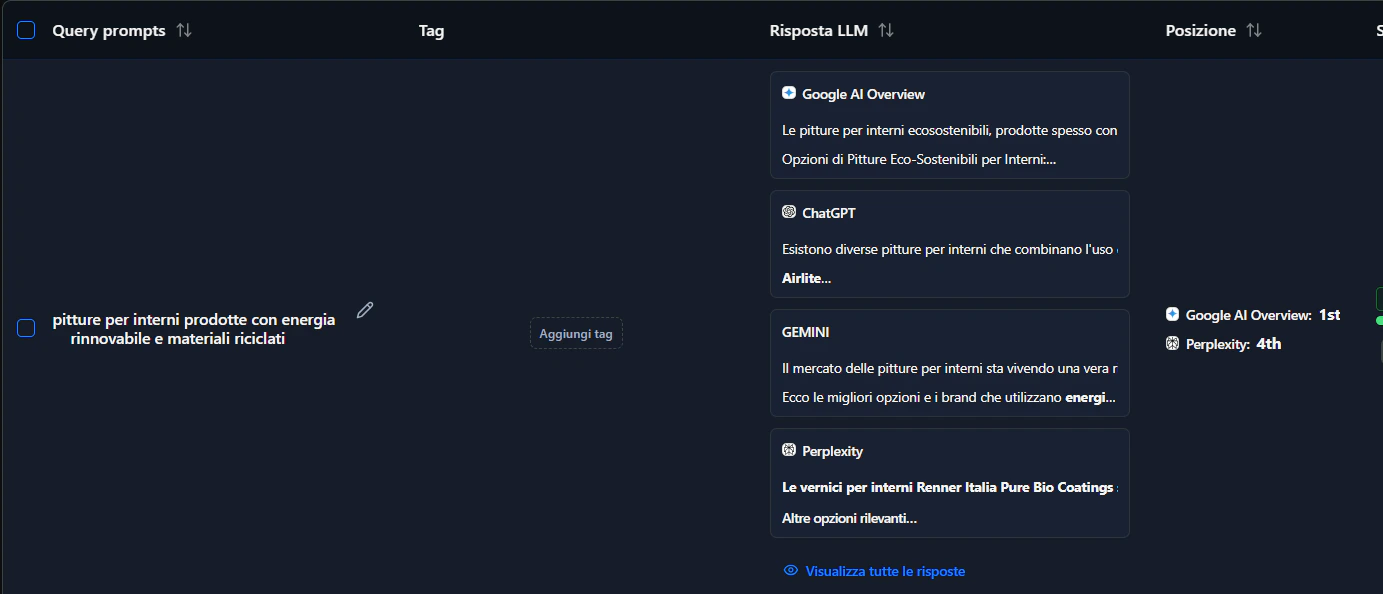 * **Remove a tag**: click on an existing tag to remove it from that prompt.
* **Re‑use across prompts**: tags you’ve already used appear as suggestions so you can keep naming consistent.
* **Export**: when you export prompts to CSV from the Prompt table, a **Tags** column is included for each prompt so you can group and filter in spreadsheets or BI tools.
Keep prompts focused and aligned with your real search queries so insights and Prompts performance are actionable.
Next: [Traffic](/monitoring/traffic) or [Actionable insight](/insight/actionable-insight).
* **Remove a tag**: click on an existing tag to remove it from that prompt.
* **Re‑use across prompts**: tags you’ve already used appear as suggestions so you can keep naming consistent.
* **Export**: when you export prompts to CSV from the Prompt table, a **Tags** column is included for each prompt so you can group and filter in spreadsheets or BI tools.
Keep prompts focused and aligned with your real search queries so insights and Prompts performance are actionable.
Next: [Traffic](/monitoring/traffic) or [Actionable insight](/insight/actionable-insight).