> ## Documentation Index
> Fetch the complete documentation index at: https://docs.rankwit.ai/llms.txt
> Use this file to discover all available pages before exploring further.
# AI Run & History
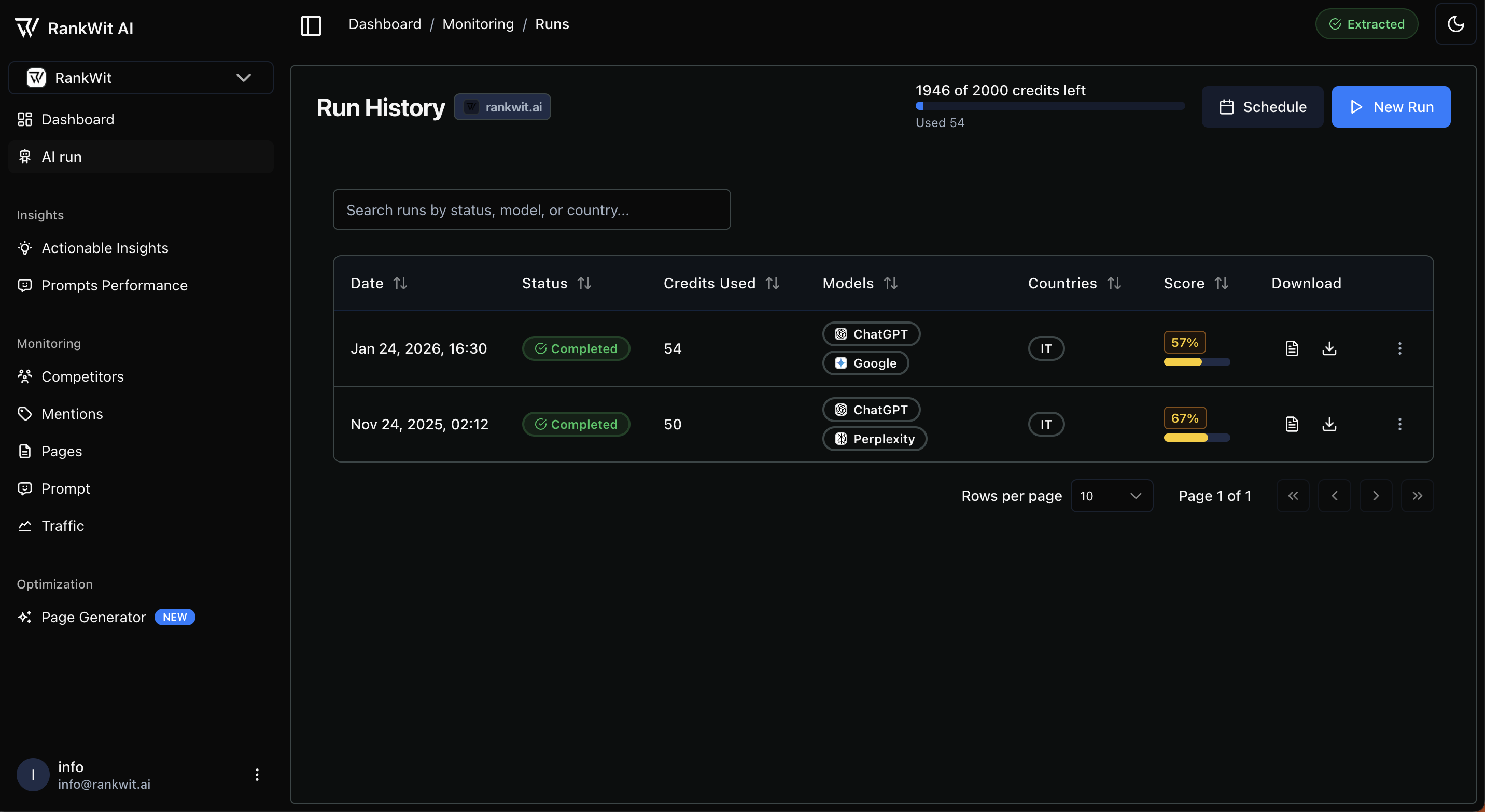
The **AI Run** page is your command center for triggering the data extractions that power your dashboard. It provides a transparent view of every analysis performed, the credits consumed, and the specific models used.
 ## 1. Credit Management
At the top of the page, you can monitor your resource usage in real-time:
* **Credit Balance:** Displays your remaining credits versus your total monthly allowance (e.g., "1946 of 2000 credits left").
* **Usage Tracker:** Shows the total credits used in the current billing cycle to help you manage your budget.
## 2. Initiating & Scheduling
Two primary actions allow you to control when data is gathered:
* **New Run:** Manually trigger an immediate analysis of your prompts across selected models and countries.
* **Schedule:** Set up automated, recurring runs to ensure your dashboard data remains fresh without manual intervention.
## 3. Run History Table
The history table provides a granular audit trail of every analysis performed for your project.
| **Column** | **Description** |
| :--------------- | :------------------------------------------------------------------------------------------------------------------ |
| **Date** | The exact timestamp when the analysis was initiated. |
| **Status** | Shows the current state of the run (e.g., **Completed**, Pending, or Failed). |
| **Credits Used** | The exact number of credits consumed for that specific session. |
| **Models** | Icons representing the AI engines analyzed (e.g., **ChatGPT**, **Google AI Overview**, **Perplexity**, **Gemini**). |
| **Countries** | The geographic location used for the search (e.g., **IT** for Italy). |
| **Score** | The final performance Subjective Impression Score generated for that specific run. |
| **Download** | Quick-action icons to export the results as a report PDF or CSV raw data file. |
## 4. Searching and Filtering
As your history grows, you can use the **Search Bar** to quickly locate specific data points:
* Filter by **Status** to find failed or pending runs.
* Filter by **Model** to compare performance between different AI engines.
* Filter by **Country** to track regional performance trends.
## 1. Credit Management
At the top of the page, you can monitor your resource usage in real-time:
* **Credit Balance:** Displays your remaining credits versus your total monthly allowance (e.g., "1946 of 2000 credits left").
* **Usage Tracker:** Shows the total credits used in the current billing cycle to help you manage your budget.
## 2. Initiating & Scheduling
Two primary actions allow you to control when data is gathered:
* **New Run:** Manually trigger an immediate analysis of your prompts across selected models and countries.
* **Schedule:** Set up automated, recurring runs to ensure your dashboard data remains fresh without manual intervention.
## 3. Run History Table
The history table provides a granular audit trail of every analysis performed for your project.
| **Column** | **Description** |
| :--------------- | :------------------------------------------------------------------------------------------------------------------ |
| **Date** | The exact timestamp when the analysis was initiated. |
| **Status** | Shows the current state of the run (e.g., **Completed**, Pending, or Failed). |
| **Credits Used** | The exact number of credits consumed for that specific session. |
| **Models** | Icons representing the AI engines analyzed (e.g., **ChatGPT**, **Google AI Overview**, **Perplexity**, **Gemini**). |
| **Countries** | The geographic location used for the search (e.g., **IT** for Italy). |
| **Score** | The final performance Subjective Impression Score generated for that specific run. |
| **Download** | Quick-action icons to export the results as a report PDF or CSV raw data file. |
## 4. Searching and Filtering
As your history grows, you can use the **Search Bar** to quickly locate specific data points:
* Filter by **Status** to find failed or pending runs.
* Filter by **Model** to compare performance between different AI engines.
* Filter by **Country** to track regional performance trends.